
Daydream Is Now on Windows
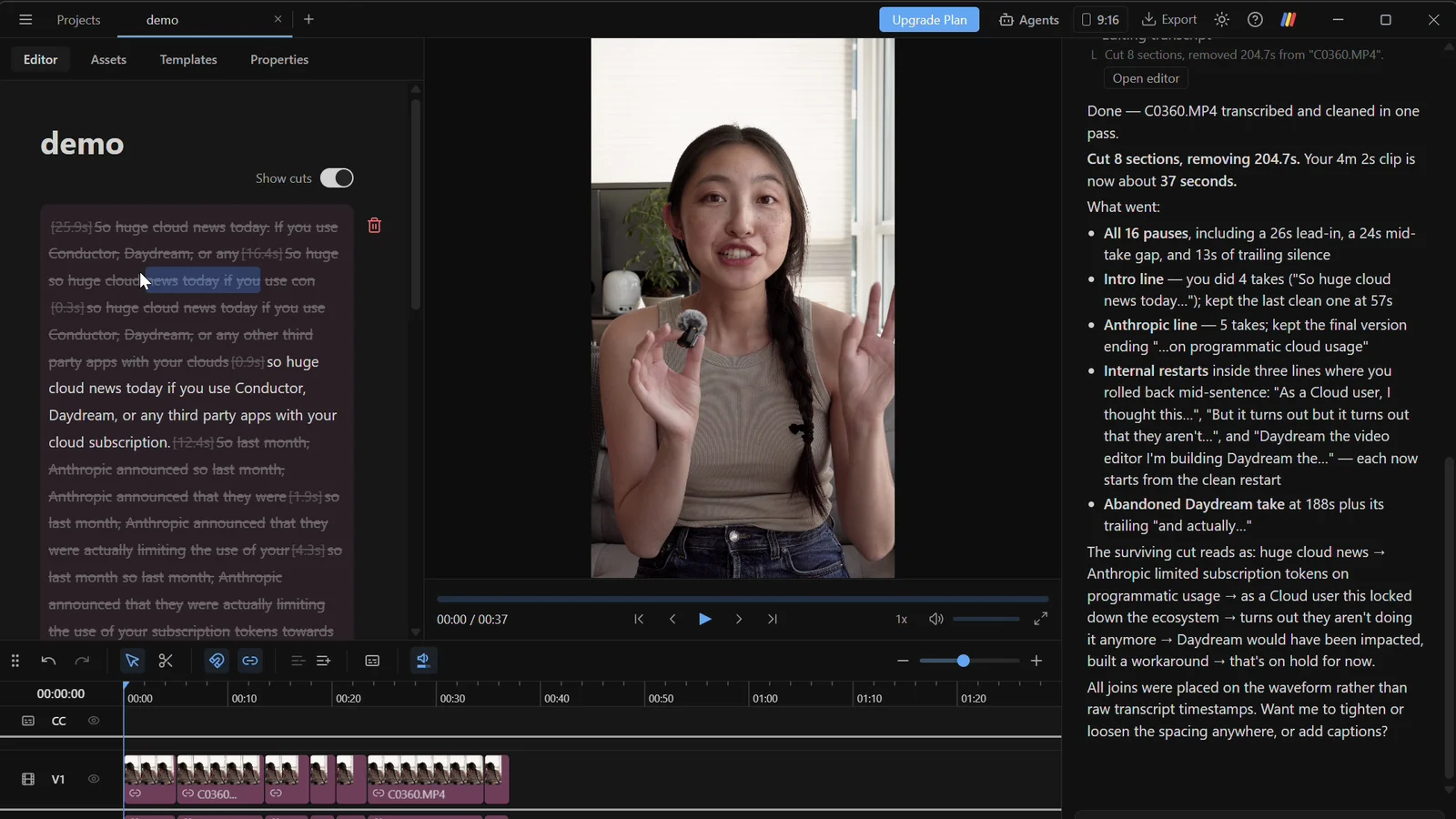
Daydream, a free AI video editor that lets Claude and ChatGPT edit your videos on a real timeline, is now available for Windows. It includes all of our AI video editing capabilities and tooling, like editing videos via the transcript, creating custom motion graphics, and searching through b-roll.
Why we built an AI video editor for Claude and ChatGPT
With the increases in model performance, more people than ever want to edit their videos with AI. Using Claude or ChatGPT directly is costly and inefficient, because the model has to find its own transcription models and build all its own tooling for every video. On top of that, it only works in chat: you can't actually watch the edit and give feedback in real time (more on why chat alone does not work).
This is why we built Daydream, an AI video editor built for Claude and ChatGPT, so you can collaborate with these top models to edit your videos. Today, we're bringing this experience to Windows.
What you can do with Daydream on Windows
Daydream on Windows includes every feature we currently have on Mac. Connecting your Claude or ChatGPT account to Daydream gives the AI everything it needs to fully edit your video, for social platforms like Instagram or TikTok or for your company's marketing materials. You can ask the AI to:
- Remove bad takes from your videos. The AI transcribes your footage, keeps the best take of each line, and cuts the rest, along with long pauses and filler words. Turn on "Show cuts" in the transcript editor to review what it removed. Try: "remove the bad takes and pauses from this video."
- Search for a particular clip and add it to your timeline. Daydream indexes your footage when you import it, so the AI can find the exact clip you describe and place it on the timeline. Try: "add the clip of me and my cat" or "add b-roll that matches my voiceover."
- Create custom motion graphics. Describe the graphic you want, including the motion, animation, and colors, and the AI builds it and adds it to your timeline for you to review. Try: "make a graphic of a search bar with someone typing 'Daydream' into it."
- Color correct and color grade your videos. Daydream has full color tools, so you can color correct and grade both standard and log footage from the chat, or ask for a more stylized look. Try: "color correct this clip, then give it a warm, filmic look."
- Add captions to your videos. Daydream captions your video automatically from its transcript, and you can style and animate the captions to fit your brand. Try: "add one-word captions" or "add captions where each word bursts into confetti as I say it."
- Export an MP4, or keep editing in Premiere Pro, DaVinci Resolve, Final Cut Pro, or CapCut. When you finish editing, export an MP4 ready to upload to YouTube, Instagram, TikTok, and more. Or export the timeline to the editor of your choice to keep working on it there.
Daydream system requirements for Windows
- Operating system: Windows 10 (version 22H2) or Windows 11, 64-bit (x64). Windows on ARM is not officially supported. Daydream may run on Windows 11 ARM devices through Windows' built-in x64 emulation. Windows 10 on ARM is not supported.
- Memory: 8 GB of RAM minimum, 16 GB recommended. Long or 4K projects benefit from more.
- Graphics: a DirectX 11 or 12 GPU with up-to-date drivers, such as Intel UHD or Iris Xe, AMD Radeon, or NVIDIA GeForce from around 2017 onward. A dedicated GPU is recommended for 4K or graphics-heavy edits.
If your PC can't decode HEVC (H.265) footage in hardware, Daydream automatically makes an editing copy when you import it. This takes a little extra time up front, but the footage edits normally afterwards.
How to get started with Daydream on Windows
- 01Download Daydream. Create an account at daydreamvideo.com and download the app for Windows.
- 02Connect your agent. Connect your Claude or ChatGPT account directly in Daydream to use it in the in-app chat, or use Daydream from any MCP client through its local MCP server.
- 03Import your footage. Drag your video files into a Daydream project or straight into the chat. Daydream transcribes and indexes your footage on import, so the AI can find any line or shot when you ask for it.
- 04Ask the AI to make an edit. You'll see it appear on your timeline as it happens.
FAQ
Is Daydream available on Windows?
Yes. Daydream is available for Windows and macOS, and the Windows app has every feature from the Mac app.
Can I edit videos with Claude or ChatGPT on Windows?
Yes. Connect your Claude or ChatGPT account in Daydream and ask for edits in the in-app chat, or connect any MCP client to Daydream's local MCP server. The AI cuts, adds b-roll and captions, builds motion graphics, and color grades directly on Daydream's timeline.
What are the system requirements for Daydream on Windows?
Windows 10 (version 22H2) or Windows 11, 64-bit, with at least 8 GB of RAM (16 GB recommended) and a DirectX 11 or 12 GPU with up-to-date drivers. A dedicated GPU is recommended for 4K or graphics-heavy edits.
Does Daydream run on Windows on ARM?
Windows on ARM is not officially supported. Daydream may run on Windows 11 ARM devices through Windows' built-in x64 emulation. Windows 10 on ARM is not supported.
Is Daydream free on Windows?
Yes, Daydream is free to use on Windows and Mac, including unlimited watermark-free exports on the free plan.
Try Daydream free
Full editing capabilities and unlimited watermark-free exports on the free plan. No credit card required.