
How to Edit Video With Claude From Your Phone
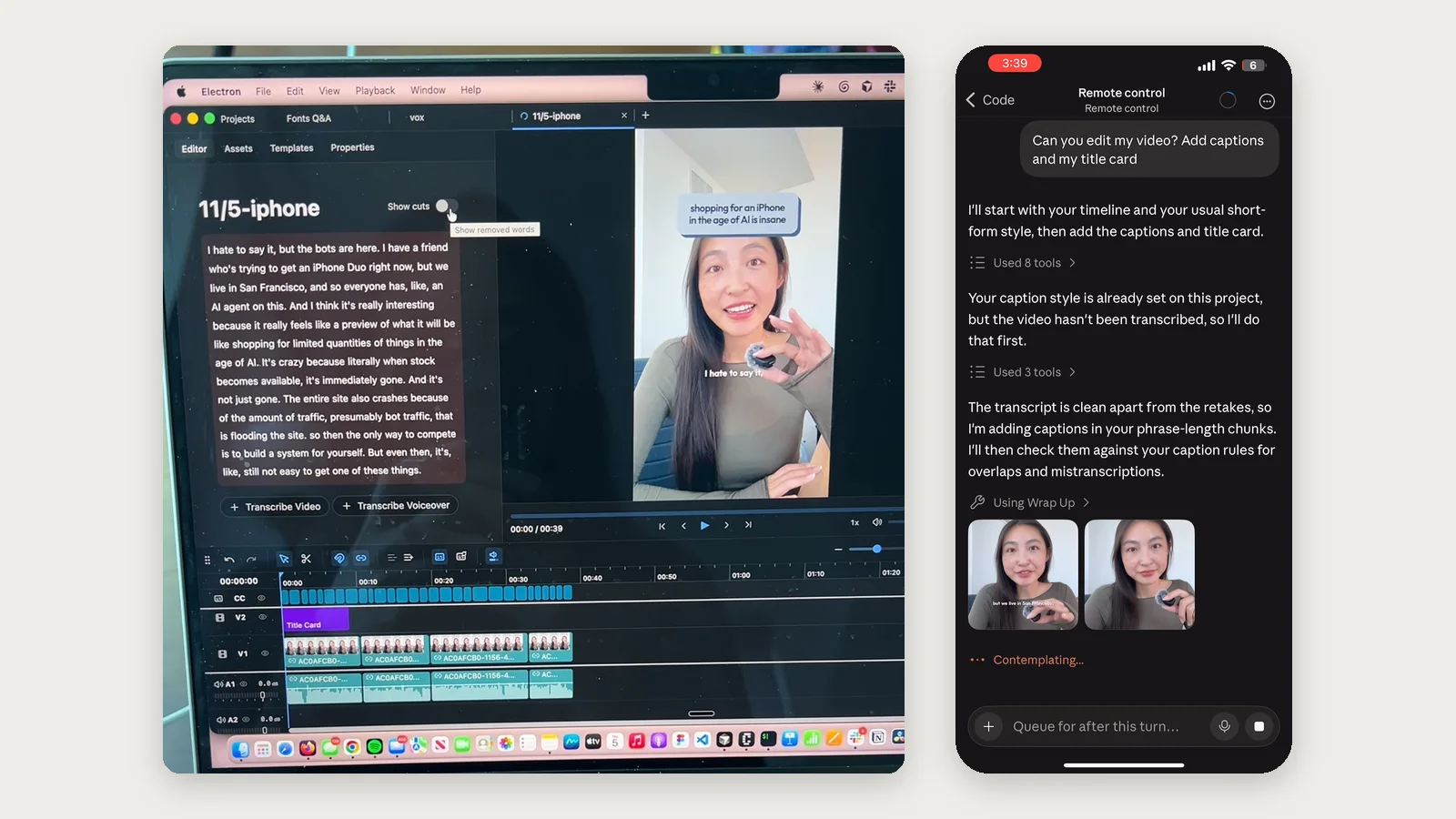
You can edit video with Claude from your phone by using Claude Code Remote Control, which lets you use Claude Code on your phone through the Claude mobile app to drive a session running on your computer. Your computer does the work, and your phone controls the session. In our test, we cut a 2:50 video down to 39 seconds, with captions and a title card, in about a minute, all from a phone.
Here's what you need, how to set it up, and the prompts we used. Jump to the setup or the example edits.
Can you edit video with Claude from your phone?
Yes! But the easiest way to do it is to have your computer do the work and drive the edits from your phone. Claude can't edit videos on its own (here's why). It needs to build all these additional tools to manage your assets, make edits, and export, or you can use an AI integrated video editor like Daydream, which provides Claude with a full set of editing tools and a full video editing interface so you can see what's happening and give feedback.
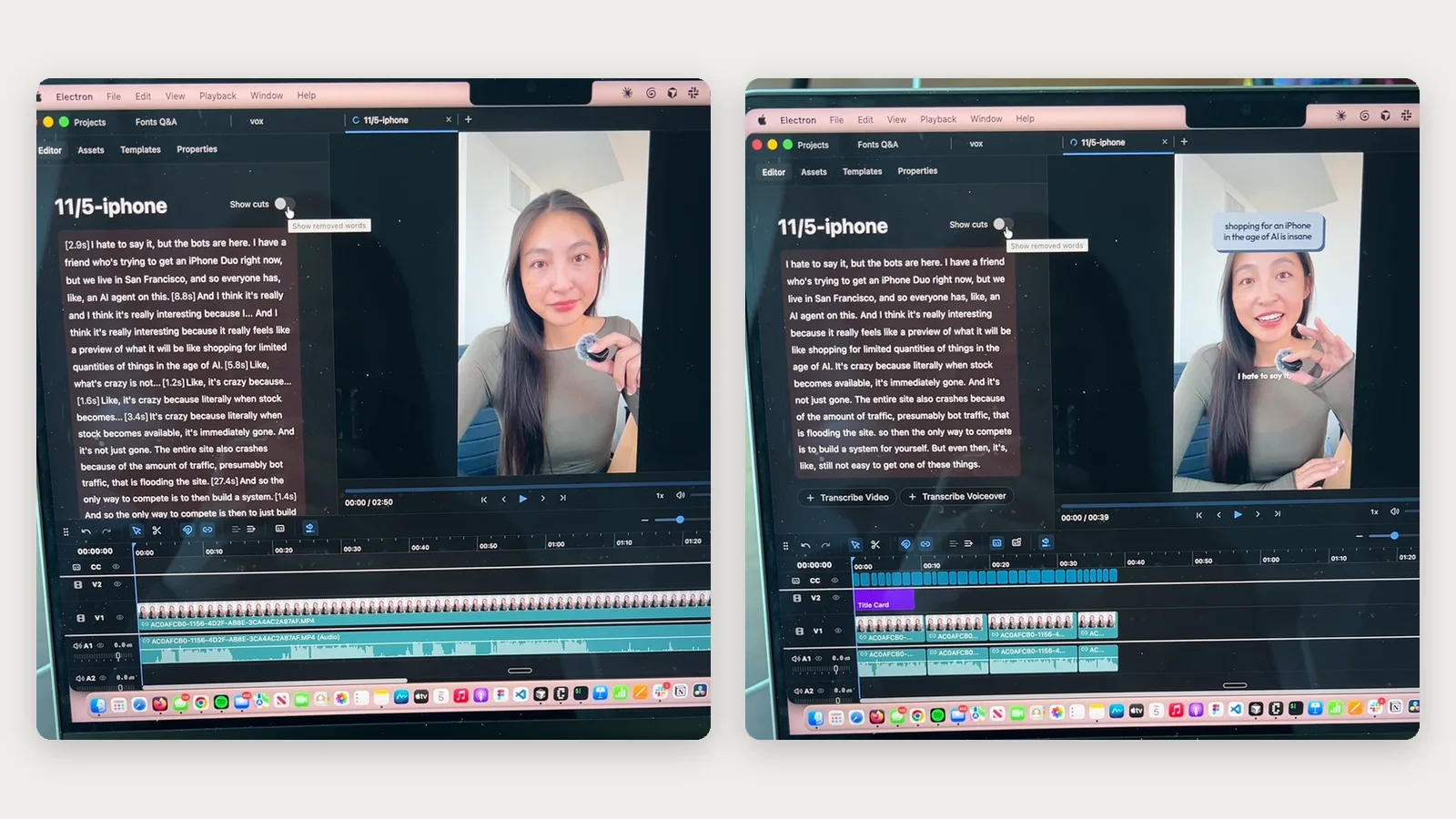
Here's the timeline before and after one prompt from the phone: the bad takes are cut, and captions and a title card are added.
What you need
- A Mac or Windows computer that stays on, with Daydream open and a project loaded. If you haven't connected Claude to Daydream yet, it takes under 5 minutes.
- The Claude Desktop app or Claude Code.
- The Claude app on iOS or Android.
- A paid Claude plan: Pro, Max, Ultra, Team, or Enterprise. API keys don't work, and on Team and Enterprise an Owner needs to turn Remote Control on first.
How to set up Claude Code Remote Control for video editing
- 01Open your project in Daydream.
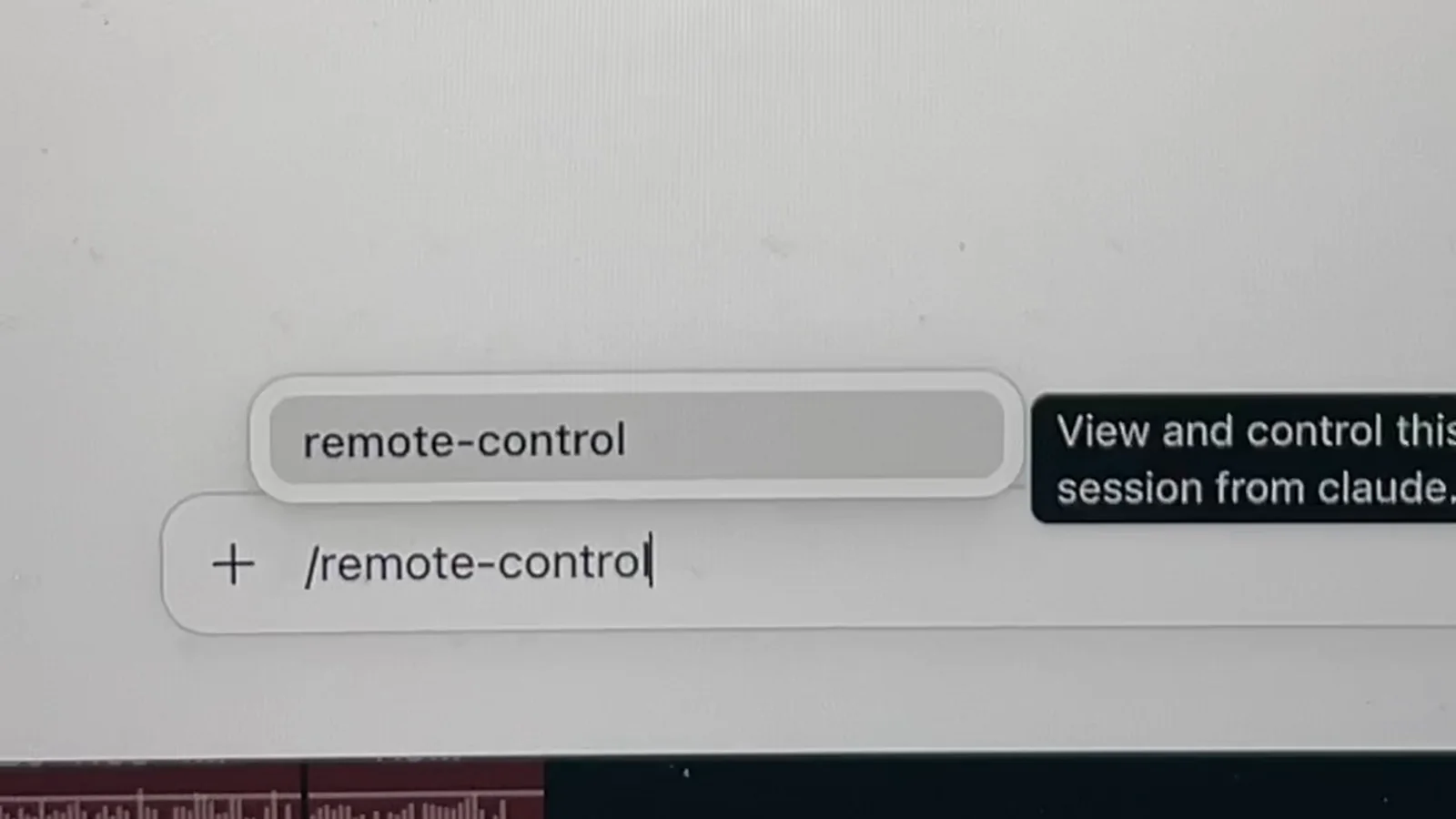
- 02Start a local session in the Code tab of the Claude Desktop app, then type /remote-control.
- 03On your phone, open the Claude app, tap Code, and open the session. Online sessions show a computer icon with a green dot.
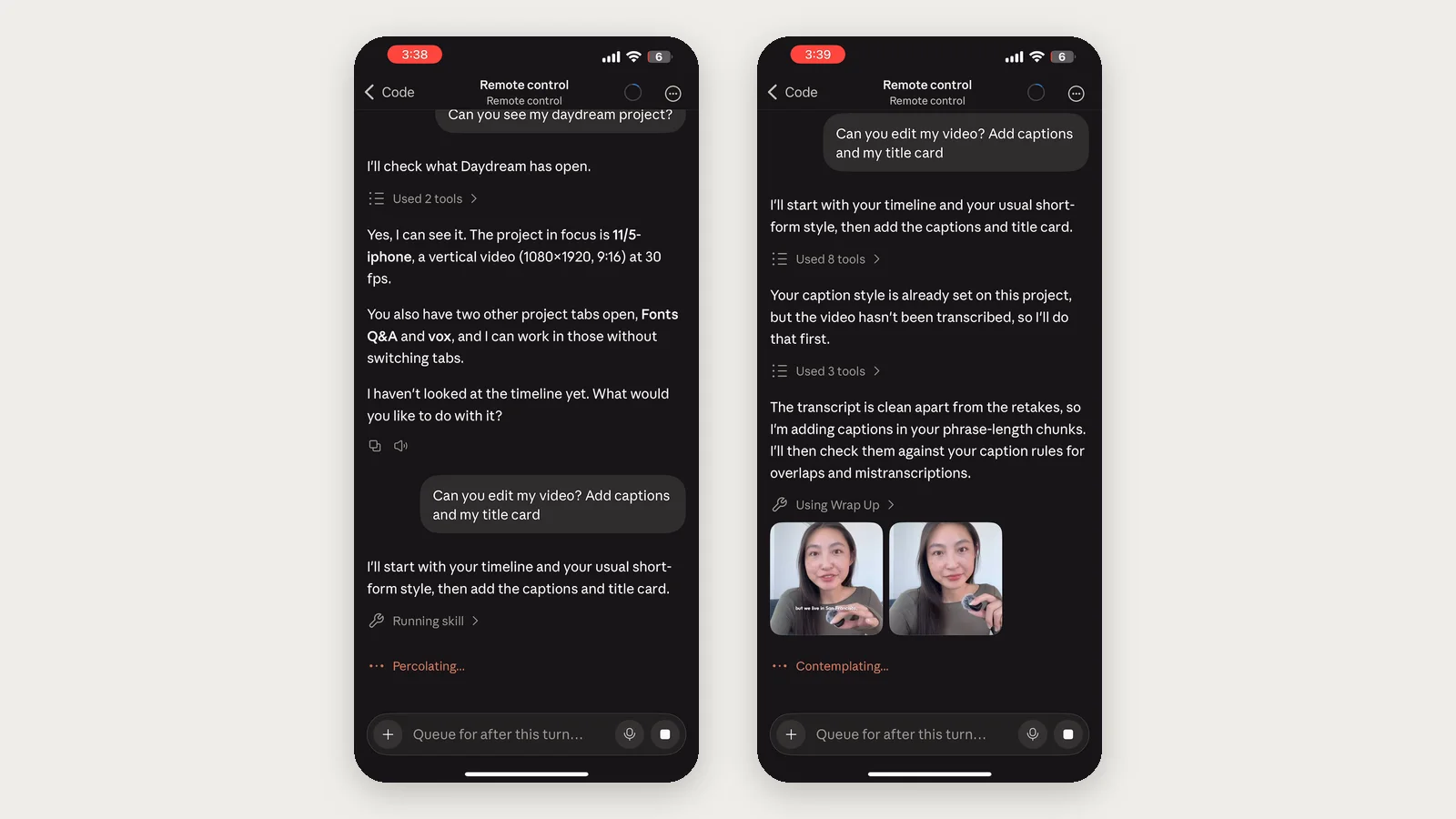
- 04Test it by asking, "Can you see my Daydream project?"
Prefer the terminal? Run this in your project folder, then press the spacebar to show a QR code you can scan with your phone:
claude remote-controlAnthropic's Remote Control docs cover the other ways to start a session, including from VS Code.
Tip: to skip this step in the future, turn on Connect new sessions to Remote Control in the Desktop app's settings.
Keep your computer awake: set your computer so it doesn't fall asleep. If it does fall asleep, it will lose connection until it wakes up again. Keep it plugged in, then:
- On a MacBook: open System Settings > Battery > Options and turn on "Prevent automatic sleeping on power adapter when the display is off." Keep the lid open, since a MacBook sleeps when you close it unless it's connected to an external display.
- On any Mac, for one session: run "caffeinate -i" in Terminal. Your Mac stays awake until you press Control-C or close that Terminal window.
- On Windows: open Settings > System > Power & battery > Screen, sleep, & hibernate timeouts and set "When plugged in, put my device to sleep after" to Never. On a laptop, also open Control Panel > Power Options > Choose what closing the lid does and set "When I close the lid" to Do nothing while plugged in.
Sending footage from your phone to Claude
There are a few ways you can get your footage to Claude to edit.
- Already on your computer or a connected external drive: if it's already on your computer, Claude can easily use Daydream to manage importing those assets and put together a timeline. This is the most reliable route, and it's what we used in our test.
- Synced folder: if you have footage saved to iCloud, Google Drive, or Dropbox, and Claude has access to those places, it can manage getting that footage and putting together an edit.
- Attached in the chat: you can also just attach files directly. Claude receives it on your computer, imports it into Daydream, and begins editing. We've tested this with a video sent from a phone. There may be size limits here, so for long or high-resolution footage, use a synced folder instead.
Example edits to run from your phone
The first two are the prompts from our test. The title card is a graphic saved in Daydream, and saved graphics are included on paid plans.
- "Can you transcribe, remove my bad takes, add captions and my title card at the beginning that says [title]. Then send me a preview of a frame with the title."
- "Make it a little shorter, and change the color of the title card."
- "Remove the silences and filler words."
- "Put b-roll under this section."
- "Check my color grade using the scopes and fix if needed." More on color grading with AI.
Here's what it looks like on the phone. Claude reports each step as it works and sends preview frames into the chat. The same prompts work for TikToks and Reels.
How to review and export the edit
- Ask for preview frames. Your phone sees still images in the chat rather than the timeline, so ask for a frame wherever you want to check something, like "send me a preview of a frame with the title."
- Ask Claude to export. For a smaller file, ask for the web preset. The file saves to your computer, and you can ask Claude to send it back to your phone. You can also ask Claude to notify you when the export finishes.
- Watch the full edit before posting. A frame doesn't show pacing or audio. Because the chat is synced on your phone and on your computer, you can even review it when you get back to your computer before exporting.
FAQ
Which Claude plan do I need to edit video from my phone?
Pro or higher. Remote Control works on Claude Pro, Max, Ultra, Team, and Enterprise plans, but not with API keys. On Team and Enterprise, an Owner has to turn it on first. Daydream itself has a free plan.
What if my computer goes to sleep?
Work stops, and the session reconnects when the computer wakes up. Quitting the Claude app or terminal takes the session offline until you bring it back.
Can I get notified when an edit or export is done?
Yes. Sign in to the Claude app with the same account, then run /config in Claude Code and turn on Push when Claude decides (for things like a finished export) or Push when actions required (for permission prompts and questions). On iOS, Focus modes and notification summaries can delay notifications.
What if Remote Control won't connect?
Check that your computer is on and online, run /remote-control again, and confirm Daydream is open. If Claude can't see your project, send /mcp from your phone to check the connection to Daydream.
Does my footage get uploaded?
Footage on your computer stays there, unless you ask Claude to send an export back to your phone. Anything you attach in the chat does leave your phone. While Remote Control is connected, the chat transcript, including your messages, Claude's responses, and tool activity, is stored on Anthropic's servers to keep your devices in sync, and it's retained under Anthropic's data usage policy.
Should I use Remote Control or Dispatch to edit video?
We use Remote Control, because editing is usually back and forth: you follow along as Claude works, answer its questions, and ask for changes. Dispatch is better for handing off a single task and checking back later. It also runs on your computer through the Claude Desktop app, on Pro, Max, and Ultra plans, but a permission request is denied if you don't answer it within ten minutes. We haven't tested Dispatch with Daydream yet.
Does it work on Android?
Yes, the Claude app is on both iOS and Android.
Try Daydream free
Full editing capabilities and unlimited watermark-free exports on the free plan. No credit card required.