
How to Use GPT-6 Astra for Video Editing
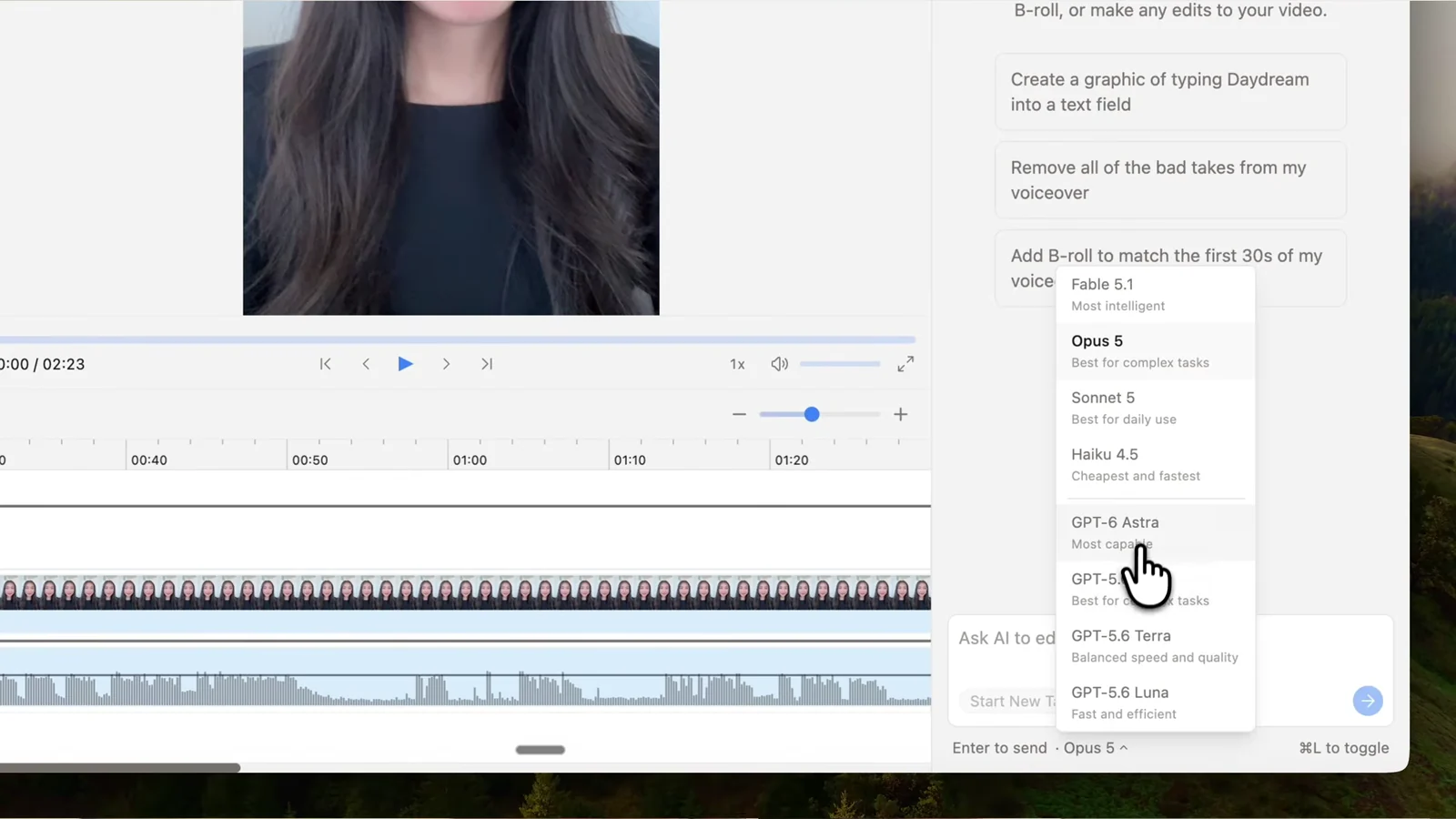
OpenAI released GPT-6 Astra on September 3, 2026, and it is already one of the strongest models available for visual work. At the time of writing it ranks first out of 53 models on Roboflow's public vision evals. We added Astra as a model option in Daydream, so you can use it to edit your videos and build motion graphics today.
Here are five ways we have been using GPT-6 Astra to save time editing and make more creative edits, with the prompts we use for each. They all run inside Daydream, a free desktop video editor built for AI agents. If you have not set it up yet, you can connect your AI to Daydream in under 5 minutes.
Set GPT-6 Astra as your model
Every workflow below starts in Daydream with Astra. Open your project in Daydream and set the model to GPT-6 Astra. Daydream makes the edit on a real timeline you can still edit manually, so Astra helps to automate the tedious work, but you keep creative control. All five workflows run on other models too, but the notes on quality below are specific to Astra.
1. Create custom motion graphics
Astra is one of the best models available today at creating motion graphics. It can model objects, animals, and abstract ideas to visualize whatever you are trying to communicate in your video. In our tests, Claude Fable 5.1 does a better job with lighting, but Astra builds more complex scenes and objects.
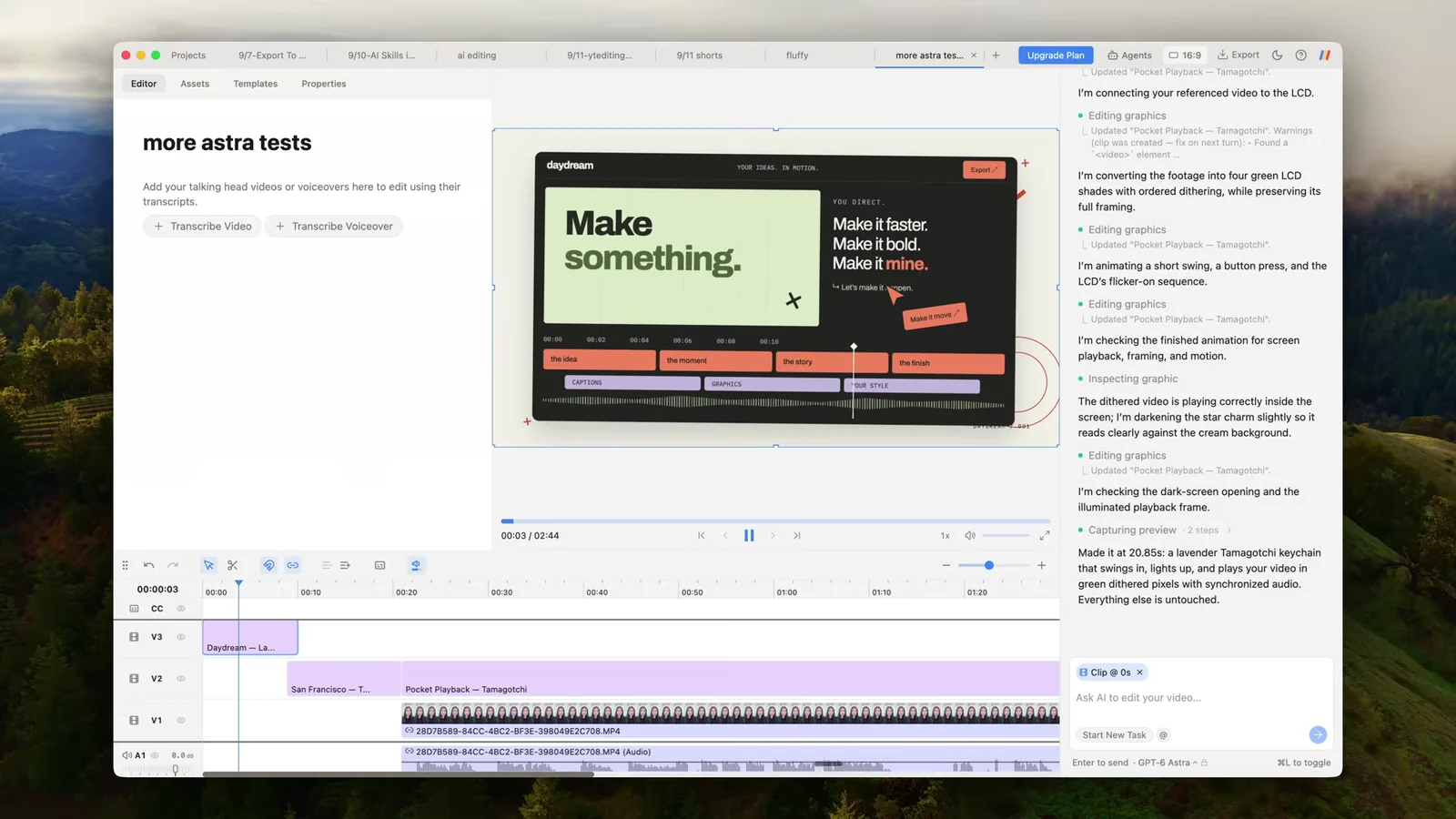
To try it, set your model to Astra in Daydream and describe the graphic you want: "build a motion graphic to end the video using our logo." Watch it back, then give Astra feedback on the animation, colors, and style until it looks the way you want.
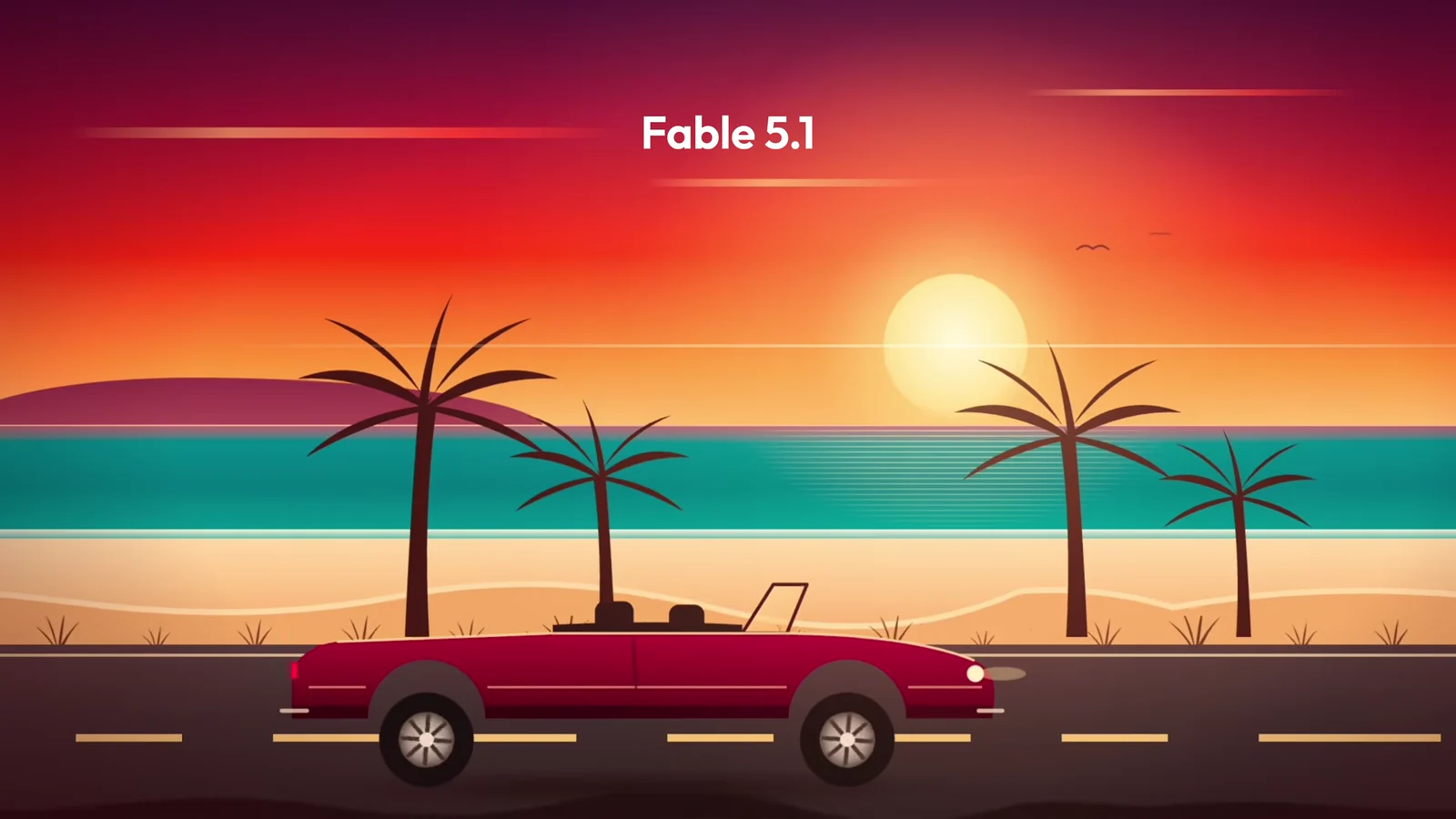
Here we tested the same one-line prompt against both models. Fable 5.1 has more complex lighting, with a sunset gradient and a golden hour glow. Astra's is flatter, but it put more into the objects themselves, giving the car windows, door seams, and spoked wheels, and putting a sailboat out on the water.

2. Build a product launch video from one prompt
In our tests, Astra made the most engaging product launch videos from a single prompt. We gave it our website and a few basic product details in one message in Daydream and let it build a quick launch video from there. Most models generate these without much motion, so the result feels more like a slideshow than a video. Astra was the best at matching the energy and movement in a launch video.
If you try this, give it your brand details and assets up front: logos, colors, and fonts. That is the biggest difference between a generic result and something that looks like it came from your team.
3. Cut bad takes, silences, and filler words
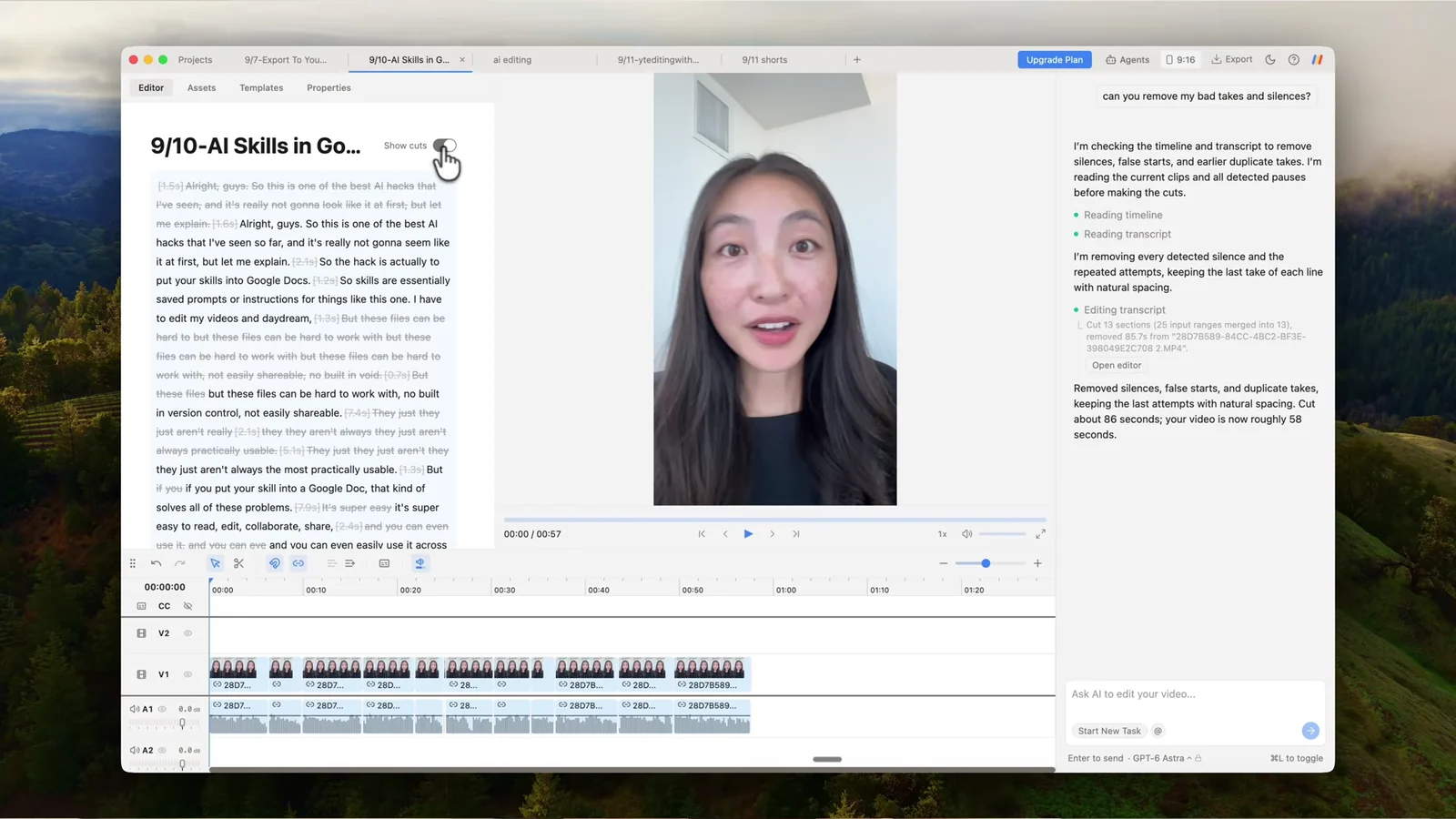
Astra can also clean up bad takes and dead air. Drag your footage into the chat or import it into your project, then ask it to remove duplicate takes, silences, or filler words. It transcribes the footage, reads the transcript to find the best parts, and cuts everything else.
Afterwards, toggle on "Show cuts" in the Transcript Editor to review what it removed and make further edits by hand. The transcript cleanup guide walks through the whole flow.
4. Clean up breathing sounds with audio keyframes
If you find a lot of breathing sounds in your long interviews or voiceovers, you can also use Astra to help you clean them up. Cutting them out can impact the natural pacing, so the better fix is to lower the volume during each breath with an audio keyframe. Doing that by hand is slow, especially if you're editing a podcast or a long interview.
With Daydream, you can just ask: "clean up the breathing sounds in my voiceover." The agent will review the transcript and the audio track and add keyframes to duck the volume over the breaths. You will see the keyframes it added directly in the timeline, and they stay fully editable, so you can drag them earlier or later, or change how far the volume drops.
5. Search through your b-roll library
You could hand Astra the raw frames of your footage, but that gets expensive quickly. Daydream indexes your b-roll on import instead, working out what happens and when, so the search is already done by the time you are editing. Astra only has to retrieve the particular clip you asked for.
So you can ask for footage the way you would describe it out loud: "add the shot of the coffee being poured" or "put b-roll under this whole section." It is faster and cheaper than sending frames to the model, and your footage stays on your machine. The same trick is what makes short-form editing with AI fast.
FAQ
Can GPT-6 Astra edit videos?
Not on its own. Astra has no timeline, no preview, and no way to show you a change as it happens. Connected to Daydream, it can cut footage by transcript, add captions and motion graphics, set keyframes, and export. Here is why chat alone does not work.
Is GPT-6 Astra better than Claude Fable 5.1 for video editing?
They are close, and both get the same editing toolkit in Daydream. In our tests Astra builds more complex scenes and objects and makes livelier product launch videos, while Fable 5.1 handles lighting better in motion graphics. Try both on the same prompt and see which fits your style.
How do I use GPT-6 Astra in Daydream?
Download Daydream, connect your AI account, open a project, and set the model to GPT-6 Astra. Then describe the edit you want in plain English and watch it land on the timeline.
Is it free?
Yes, Daydream is free to use, including unlimited watermark-free exports on the free plan.
Try Daydream free
Full editing capabilities and unlimited watermark-free exports on the free plan. No credit card required.